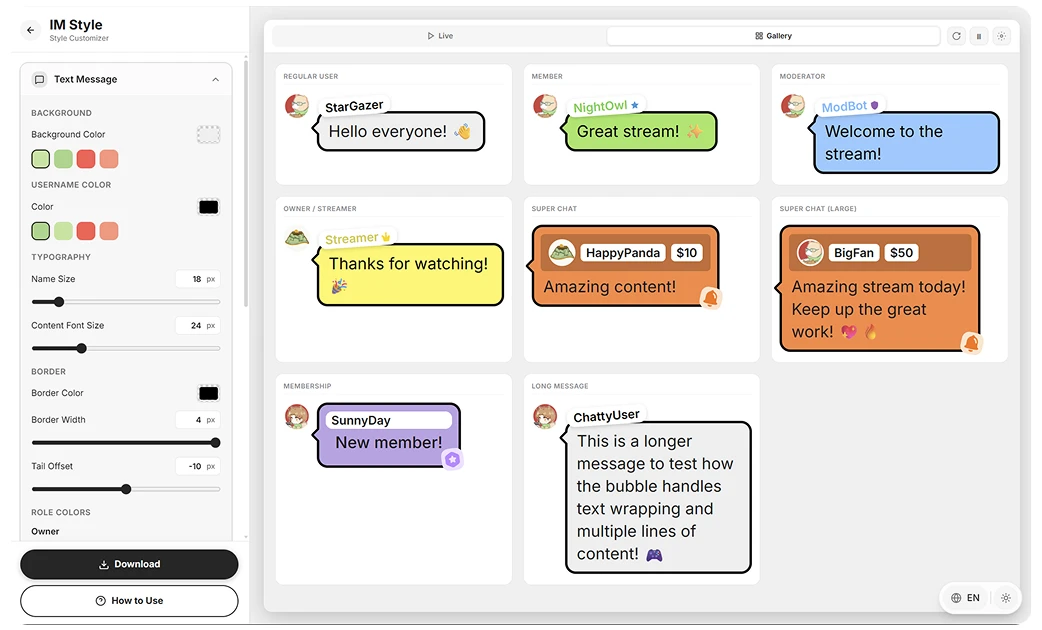
Want to transform your YouTube live chat from this default look into something beautiful?
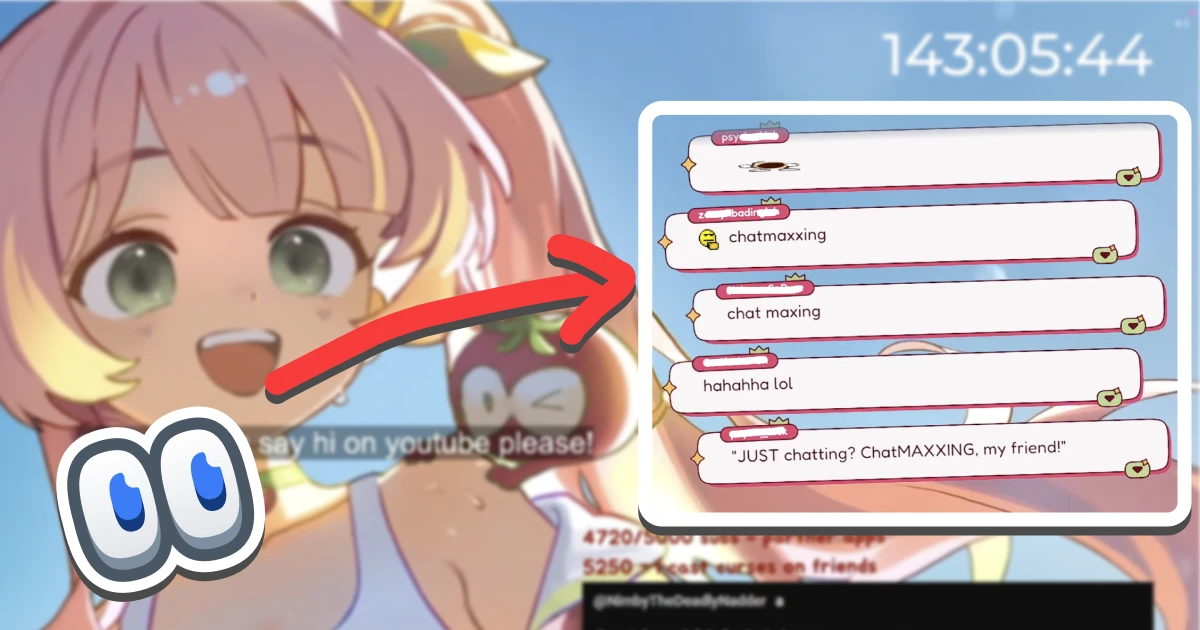 Screenshot from twitch.tv/toma - a great example of customized live chat styling
With just a few lines of CSS, you can completely customize how your live chat appears on stream. This guide will show you how to get started.
Here’s a live preview of one of our themes:
Why Customize Your Live Chat?
A customized live chat can:
- Enhance viewer experience - Make your stream look more professional
- Match your brand - Align chat aesthetics with your channel’s theme
- Improve readability - Better contrast and sizing for easier reading
- Stand out - Differentiate your stream from others
What You’ll Need
Before we begin, make sure you have:
- OBS Studio (or Streamlabs OBS)
- A YouTube channel with live streaming enabled
- Basic understanding of adding browser sources
Step 1: Get Your YouTube Live Chat URL
First, you need to get the popup URL for your YouTube live chat:
- Start a YouTube live stream or open your live dashboard
- Click on the Popout Chat button (or right-click the chat and select “Pop out chat”)
- Copy the URL from the popup window
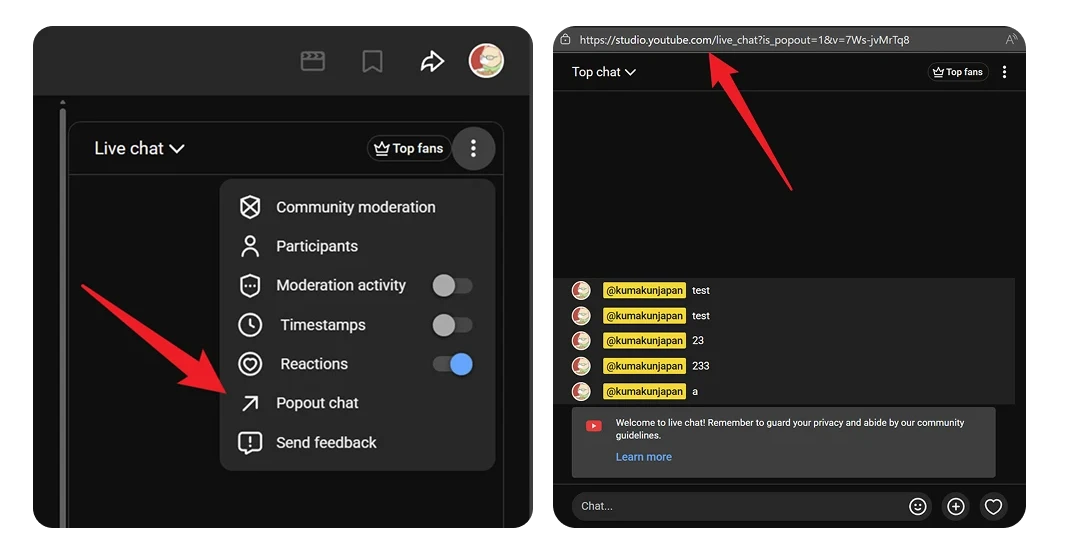
The URL will look something like this:
https://www.youtube.com/live_chat?is_popout=1&v=8Xli4rP_RnwStep 2: Add a Browser Source in OBS
- In OBS, click the + button in the Sources panel
- Select Browser
- Name it “YouTube Chat” and click OK
- Paste your live chat URL in the URL field
- Set width and height (recommended: 450x800 or adjust to your layout)
At this point, you’ll see the default YouTube chat style - which works, but isn’t very visually appealing for streaming.
Step 3: Apply Custom CSS
This is where the magic happens! In the OBS Browser Source settings, you’ll find a Custom CSS field. This is where you paste your styling code.
Option A: Use Online CSS Generators
There are several online tools that let you customize your chat style visually without writing code:
Chat Style Generator v2 - chatv2.septapus.com
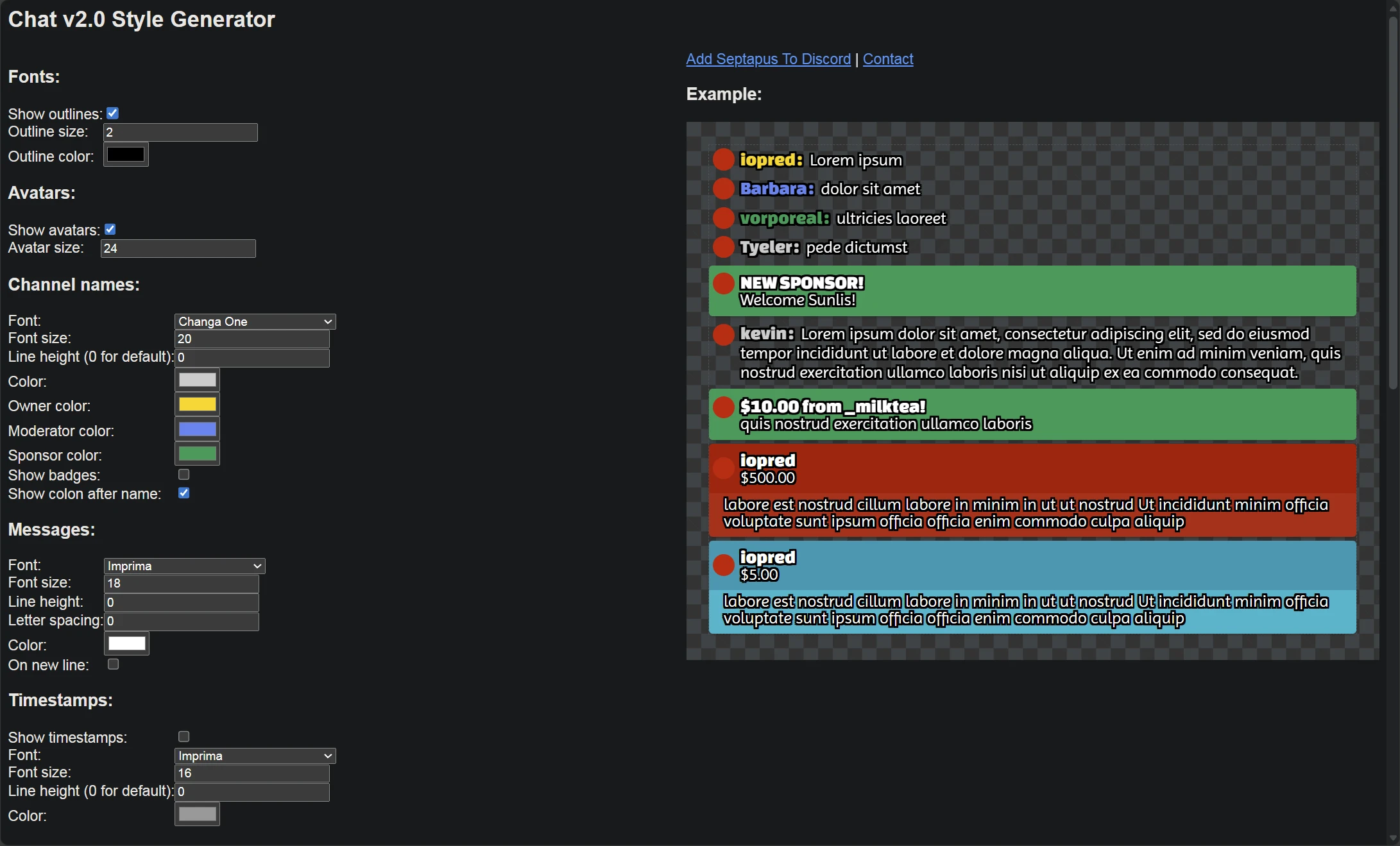
A classic tool that allows you to customize colors, fonts, and sizes with real-time preview. Supports YouTube, Twitch, and other platforms.
Doodlekuma Live Chat CSS - doodlekuma.com/en/live-chat
Our gallery offers ready-to-use styles with live preview and customization options. Some themes include color pickers and animation settings.
Premium Styles
If you’re looking for unique, professionally designed styles, some creators sell premium CSS themes:
Chroneco - ko-fi.com/chroneco/shop
A popular creator offering high-quality chat styles with cute and professional designs. Great for VTubers and streamers who want something special.
BOOTH Marketplace - Popular Japanese platform for VTuber assets:
- 赤染 アリス’s Chat Styles - Cute and colorful designs
- tsukodome’s Chat Overlays - Clean and modern styles
To use CSS from any generator, simply copy the provided CSS code and paste it into OBS:
@import url("YOUR_CSS_URL_HERE");Or paste the full CSS code directly into the Custom CSS field.
Option B: Write Your Own CSS
If you’re comfortable with CSS, you can write your own styles. Here’s a basic example showing some key selectors for YouTube live chat:
/* Hide the background */
body {
  background: transparent !important;
}

/* Style message containers */
yt-live-chat-text-message-renderer {
  background: rgba(0, 0, 0, 0.7) !important;
  border-radius: 8px;
  margin: 4px 0;
  padding: 8px 12px;
}

/* Style usernames */
#author-name {
  color: #00ff00 !important;
  font-weight: bold;
}

/* Style message text */
#message {
  color: #ffffff !important;
}
This is just a starting point - YouTube live chat has many more elements you can style, including Super Chats, membership badges, emojis, and more. Use your browser’s Developer Tools (F12) to inspect the chat elements and discover additional selectors.
Choosing the Right Style
With so many options available, how do you pick the right style? Consider these factors:
What’s Your Priority?
Viewer Engagement - If you want chat to be a prominent part of your stream, choose styles with larger text, colorful bubbles, and eye-catching animations. These work great for interactive streams where chat participation is key.
Scene Integration - If your priority is aesthetic cohesion, pick a style that matches your overlay theme. Minimal styles with transparent backgrounds blend seamlessly into complex scenes without distracting from your content.
Content Archival - Many streamers display chat so their VODs (Video on Demand) include viewer reactions. For archives, readability is paramount - focus on clear text and good contrast. The username might be less important than the message content itself.
Consider Your Audience
- Members and regulars: Some styles highlight channel members with special badges or colors. If building community recognition matters to you, choose styles that make membership badges visible.
- Fast-moving chat: For high-activity streams, simpler styles with smaller footprints prevent chat from overwhelming your screen.
- International viewers: If your audience uses different languages or emojis frequently, test how the style handles various character sets.
Start Simple
When in doubt, start with a clean, minimal style. You can always switch to something more elaborate once you understand what works for your stream. The best style is one that enhances your content without becoming a distraction.
Quick Tips
- Test before going live - Send test messages, check Super Chats and memberships
- Prioritize readability - Good contrast, appropriate font size, enough padding
- Refresh if styles don’t apply - Right-click the browser source → Refresh
What’s Next?
Now that you know the basics, explore our full gallery to find the perfect style for your stream. Many styles also support customization, allowing you to adjust colors, sizes, and more!
Happy streaming!