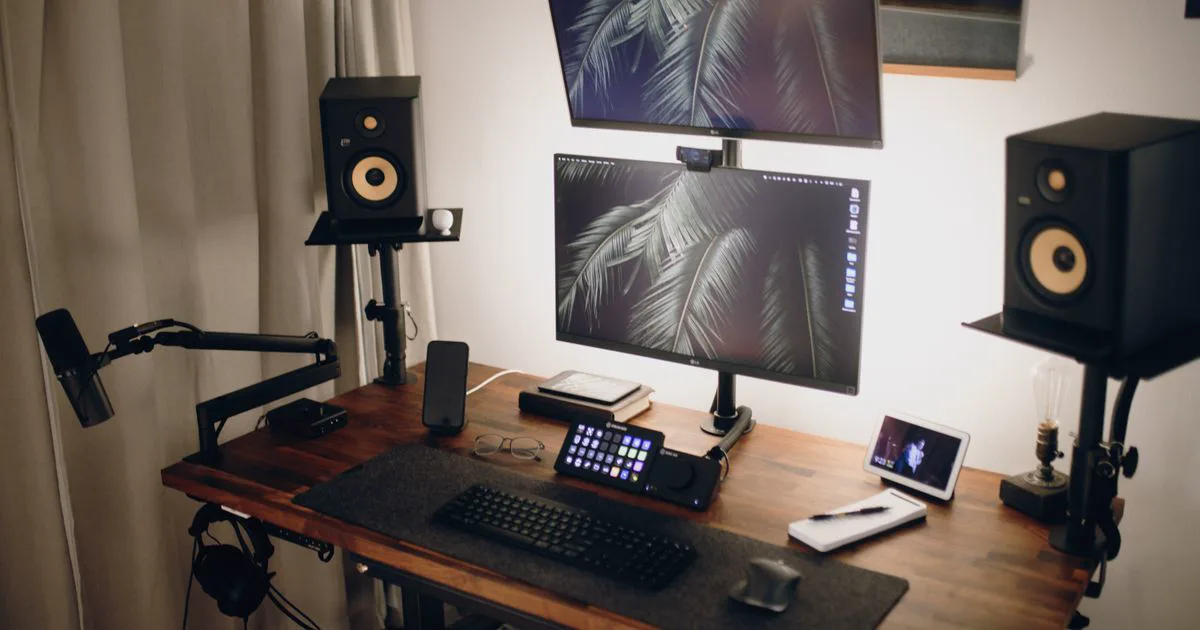
A transparent chat overlay lets your live chat float cleanly over your gameplay or scene in OBS — no ugly grey box behind the messages. The trick is a Browser Source + CSS that hides the chat background. Here’s how to do it with no coding.
Why a transparent chat overlay?
By default, a chat window has its own background. A transparent overlay removes that box so only the messages (and avatars) show, blending the chat into your scene. Every Doodlekuma theme is built OBS-friendly with a transparent background, so you get this for free — no manual CSS tweaking.
Add a transparent chat overlay in OBS
The cleanest route is Social Stream Ninja (SSN), which brings your chat from YouTube, Twitch, TikTok and 120+ platforms into one overlay:
- In Social Stream Ninja, connect your platform (YouTube, Twitch…) so messages flow in.
- Copy the Main chat overlay & control dock URL (
https://socialstream.ninja/dock.html?session=…). - In OBS, add a Browser Source and paste that URL. Set the size (e.g.
1920×1080). - Download a Social Stream theme from the Doodlekuma live chat gallery and paste its CSS into the Browser Source’s Custom CSS box.
Because the theme already hides the background, your chat now floats transparently over whatever is behind it in OBS. Full walkthrough with screenshots: How to Use Social Stream Ninja Chat CSS in OBS. Styling the native YouTube popout instead? See Getting Started with YouTube Live Chat CSS.
Pick a transparent-friendly style
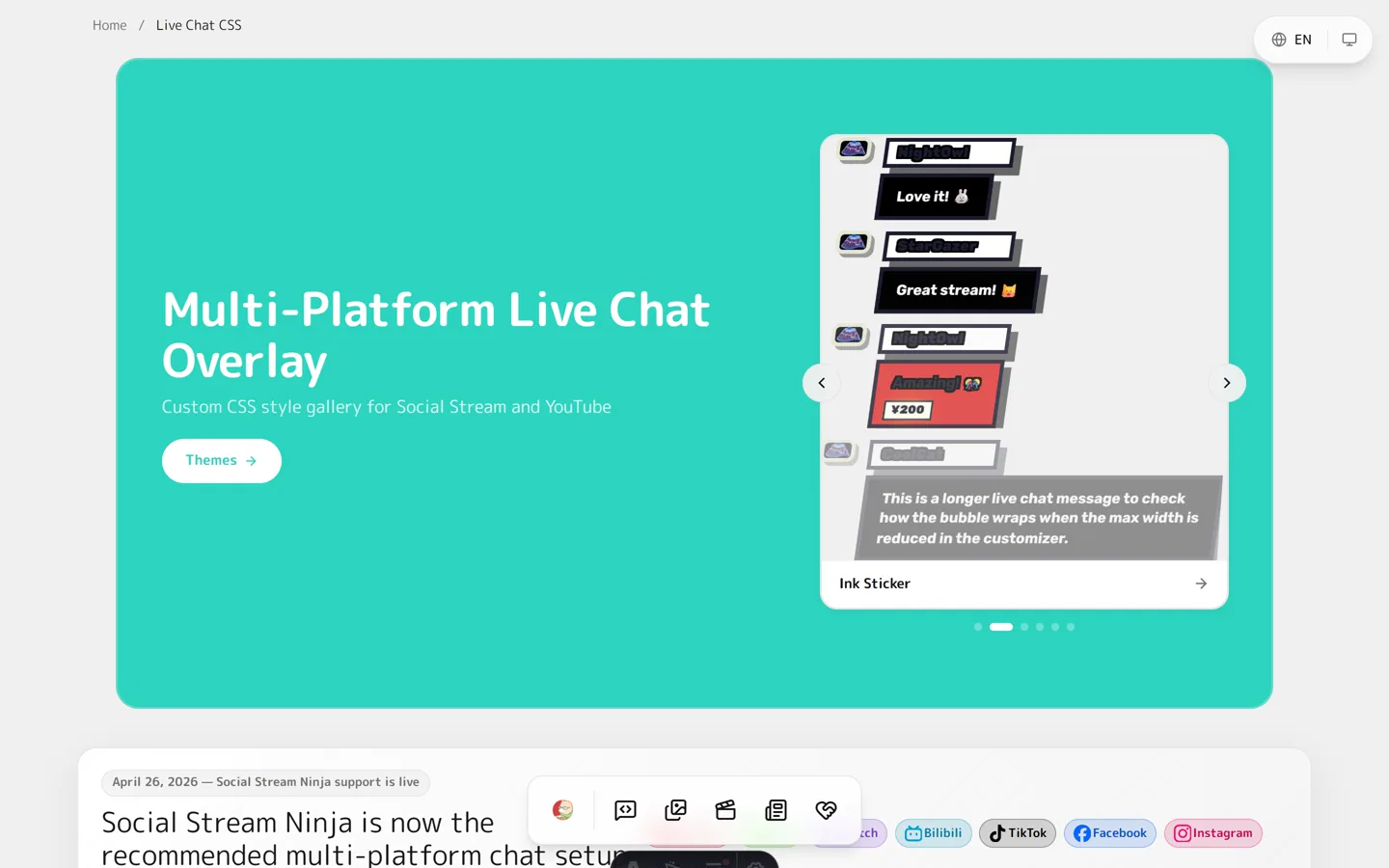
Every theme in the gallery is a live, editable preview with an OBS-friendly transparent background:
- Neon — glowing messages over your scene.
- Pinky — cute pastel character bubbles.
- Stacked notifications — minimal, only the latest messages.
FAQ
How do I make my chat background transparent in OBS?
Use a chat CSS overlay that hides the background. Doodlekuma themes already do this, so you only paste the CSS into your OBS Browser Source’s Custom CSS box — no manual editing.
Do I need to change OBS settings, or just the CSS?
Just the CSS. Paste it into the Browser Source’s Custom CSS field; the transparency comes from the theme itself.
Does the transparent overlay work in Streamlabs too?
Yes. Any software with a Browser Source and a Custom CSS field works, including OBS Studio and Streamlabs.
Which platforms does it support?
YouTube, and 120+ platforms through Social Stream Ninja, including Twitch, TikTok and Kick.
Want your chat to float cleanly over your scene? Open the live chat gallery, pick a theme, and add a transparent chat overlay in OBS in minutes.