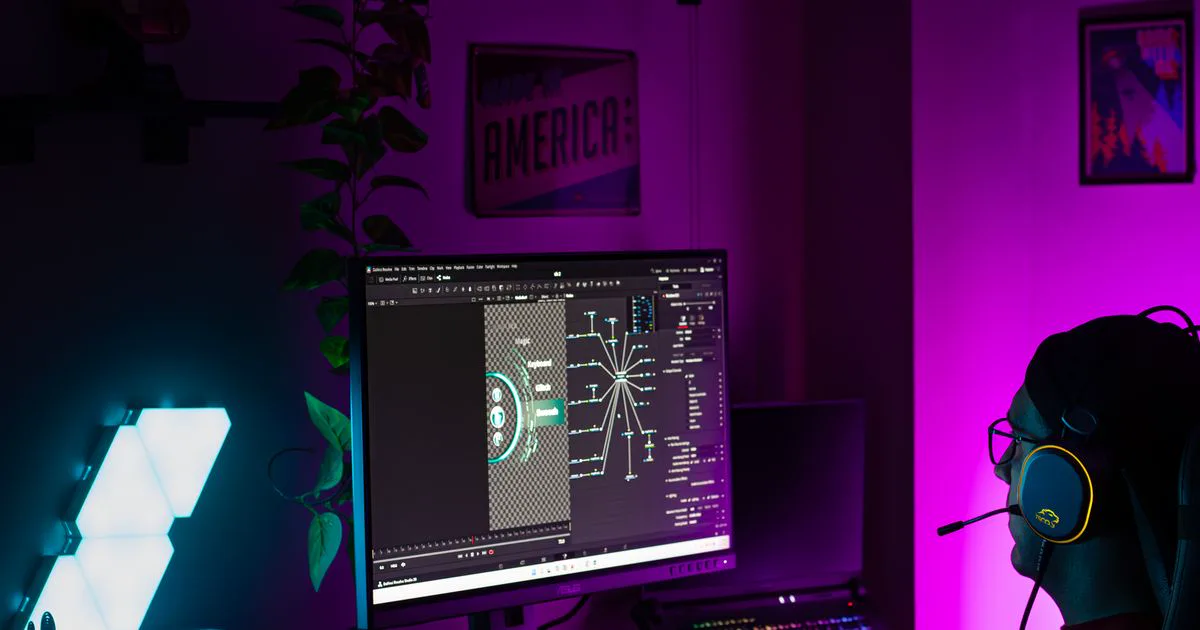
You don’t need to write CSS by hand to give your YouTube live chat a custom look. With a chat CSS generator you start from a style, tweak it visually, and export ready-to-paste CSS for OBS. This guide shows how to generate your own YouTube live chat overlay in minutes — no coding required.
What is a YouTube chat CSS generator?
A YouTube chat CSS generator lets you customize your live chat overlay — colors, fonts, message bubbles, animations, avatars, and role badges (owner, moderator, member) — with a live preview, then export the CSS instead of writing it by hand.
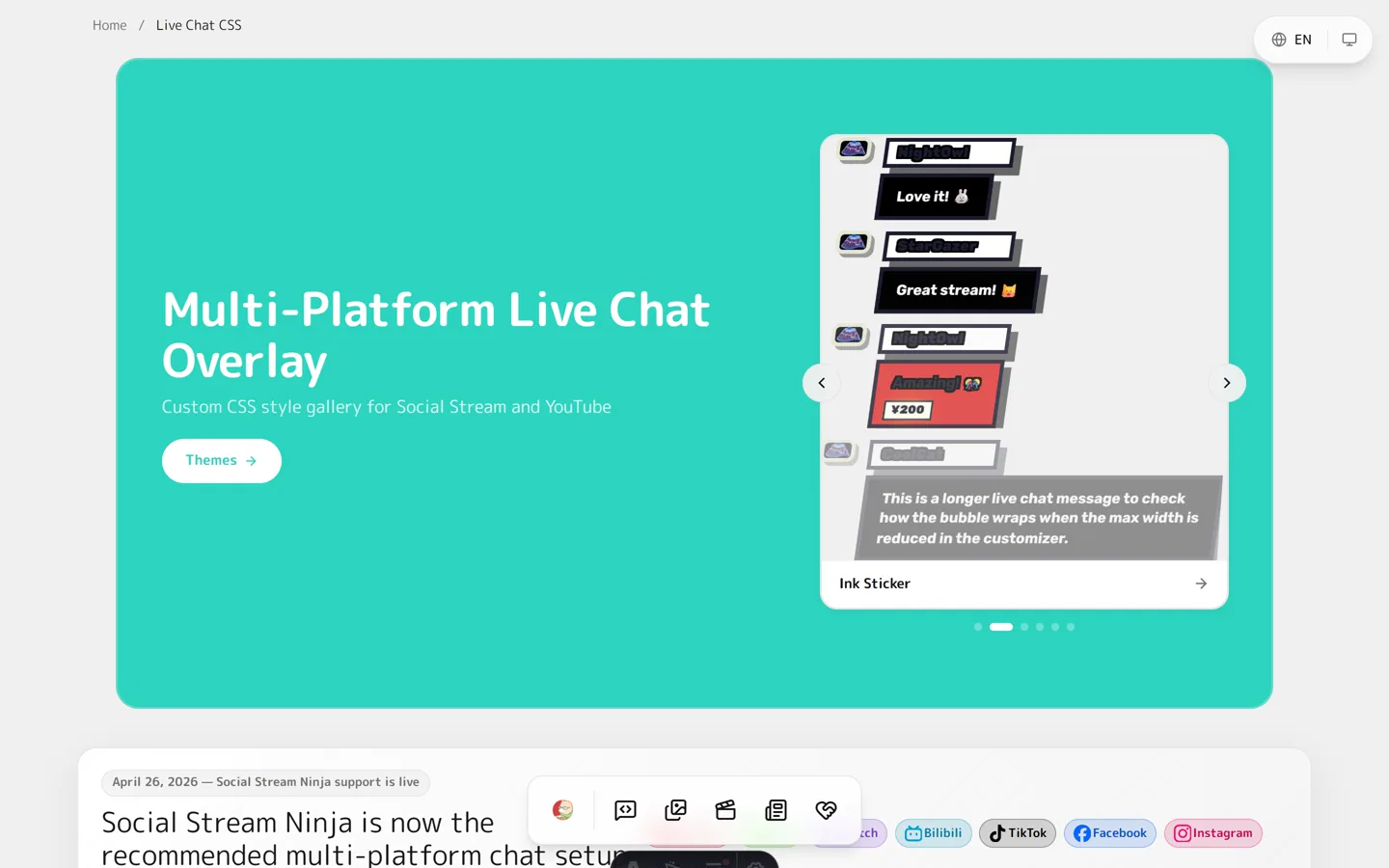
The Doodlekuma live chat gallery works as a generator, with one difference from a blank generator: you start from a finished, editable theme rather than an empty form. Neon, bubble, sticker, paper, Twitter/X-style and more are all live starting points.
Generate your chat style in 3 steps
1. Pick a theme
Open the gallery and choose a style you like. Every theme is a live, editable preview — for example, the Neon theme or a bubble style. This is your starting point instead of a blank canvas.
2. Customize it live
Use the on-page customizer to adjust the look:
- Colors — background, text, borders, glow
- Fonts & sizes — username and message text
- Effects & animations — pop-in, fade, neon flicker, and more
- Role colors — owner, moderator, member badges
- Super Chat / membership styling
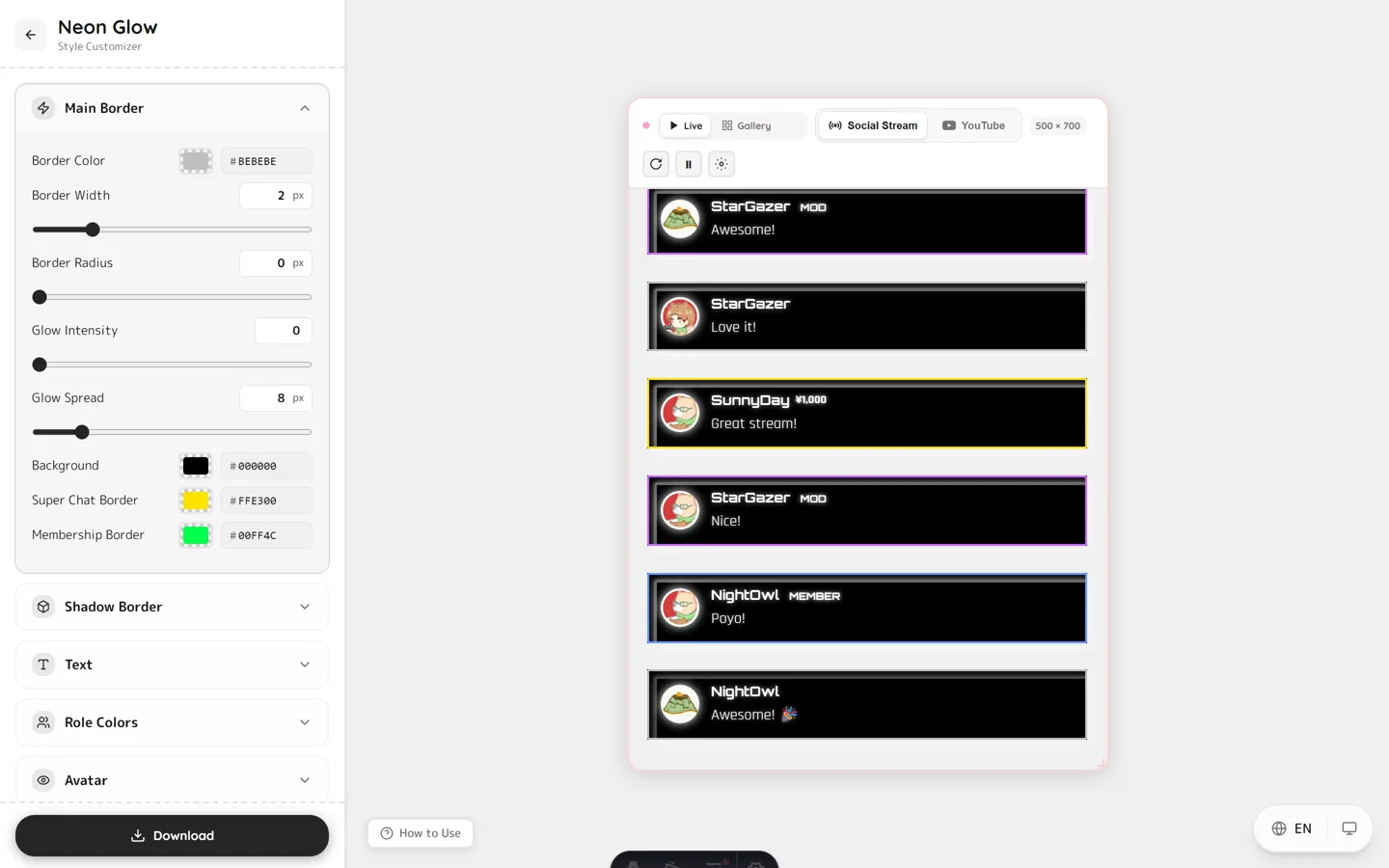
The preview updates instantly as you change parameters, so you can see exactly how your live chat will look on stream.
3. Export the CSS
When you’re happy, download the generated CSS. Most themes ship two versions:
- Social Stream — for Social Stream Ninja’s control dock overlay (works across 120+ platforms).
- YouTube — for the native YouTube popout chat.
Use your generated CSS in OBS
Paste the exported CSS into an OBS Browser Source → Custom CSS box. Two paths, depending on how your chat is captured:
- YouTube popout chat — full walkthrough in Getting Started with YouTube Live Chat CSS.
- Social Stream Ninja (Twitch, TikTok, Kick and 120+ platforms) — see How to Use Social Stream Ninja Chat CSS in OBS.
Generator vs ready-made themes
A bare generator gives you an empty form and a blank result. Doodlekuma gives you a generator plus a library of finished themes, so you can:
- Start from a polished look and tweak, instead of building from scratch.
- Export both Social Stream and YouTube CSS versions.
- Style chat from YouTube, Twitch, TikTok and 120+ platforms (via Social Stream Ninja).
- Read the guides in English, 中文, 日本語 and 한국어.
FAQ
Is the YouTube chat CSS generator free?
Many themes are completely free to download. A few premium themes are available on Ko-fi — the download button on each theme tells you which is which.
Do I need to know CSS?
No. Pick a theme, adjust it with the visual customizer, and export the finished CSS. You only ever copy-paste it into OBS.
Does it work with OBS and Streamlabs?
Yes. The exported CSS works in any software with a Browser Source and a Custom CSS field, including OBS Studio and Streamlabs.
Can I use it on Twitch or TikTok, not just YouTube?
Yes. Use the Social Stream version of the CSS with Social Stream Ninja, which aggregates chat from YouTube, Twitch, TikTok, Kick and 120+ platforms into one overlay.
Ready to make your chat your own? Open the live chat gallery, pick a theme, and generate your YouTube live chat CSS in a few clicks.