Streaming to Twitch and YouTube at the same time? Instead of juggling two chat windows, you can merge every platform’s chat into one styled overlay in OBS — no coding. Here’s how to build a single multistream chat overlay.
One overlay for every platform: Social Stream Ninja
Social Stream Ninja (SSN) is built for exactly this. It aggregates chat from Twitch, YouTube, Kick, TikTok and 120+ platforms into a single feed, tags each message with its source, and gives you one overlay URL. You style that overlay with a Social Stream CSS file — so your whole multistream chat shares one consistent look.
Build your multistream chat overlay in OBS
- In Social Stream Ninja, connect each platform you’re streaming to (Twitch, YouTube, Kick, TikTok…) so all their messages flow into one feed.
- Copy the Main chat overlay & control dock URL from the top-right (
https://socialstream.ninja/dock.html?session=…). - In OBS, add a Browser Source and paste that URL (set it to
1920×1080). - Download a Social Stream theme from the Doodlekuma live chat gallery and paste its CSS into the Browser Source’s Custom CSS box.
Full step-by-step with screenshots: How to Use Social Stream Ninja Chat CSS in OBS.
Pick a style for your combined chat
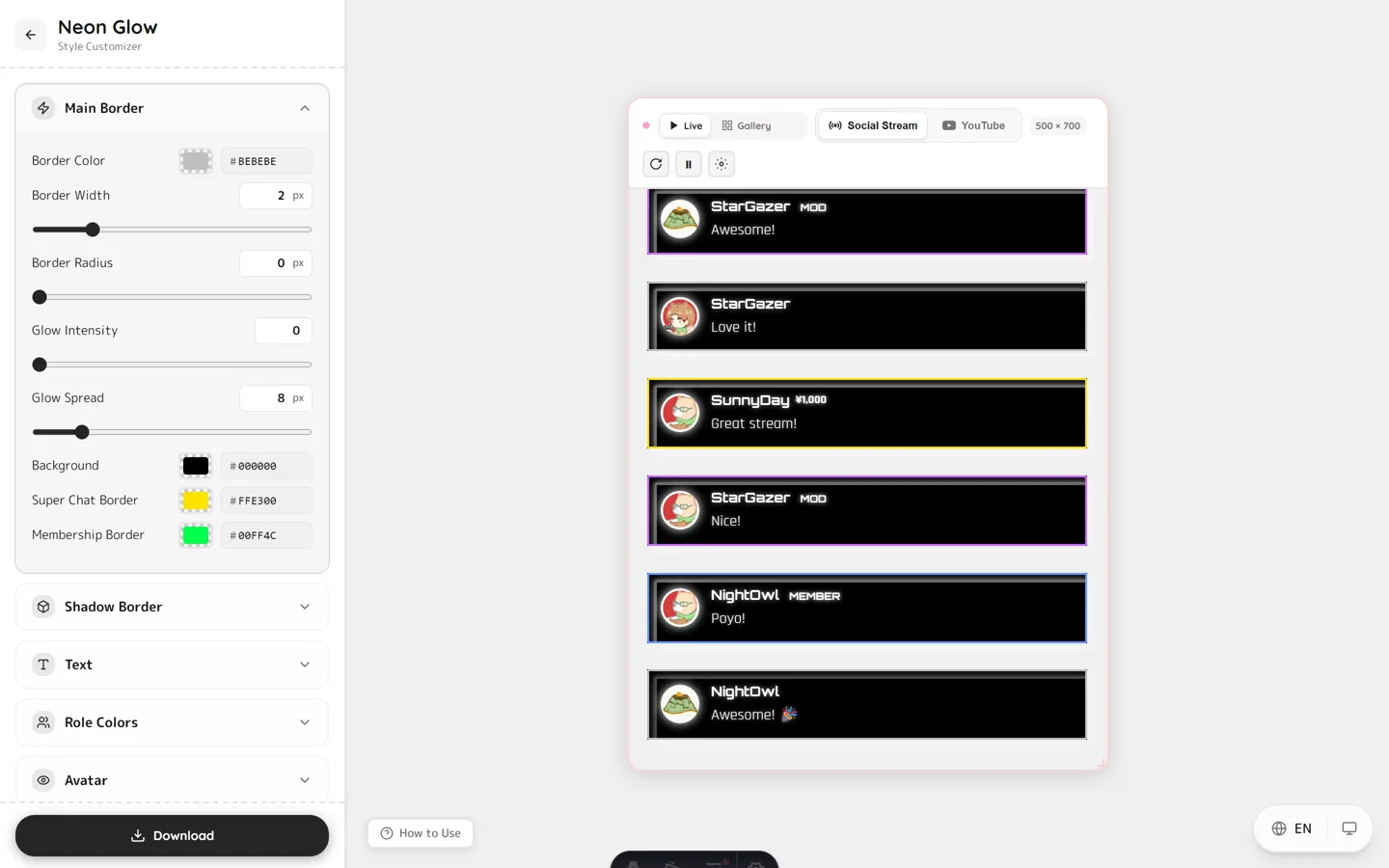
Every theme in the gallery is a live, editable preview. For a merged multi-platform feed, styles that keep messages readable work well:
- Twitter/X style — clean cards with role badges, easy to scan.
- Stacked notifications — minimal, shows only the latest messages.
- Neon — high-impact glow for gaming multistreams.
Why one merged overlay?
- Consistent look across Twitch, YouTube, Kick and TikTok — one CSS file.
- Never miss a message — every platform’s chat in a single feed.
- Less OBS clutter — one Browser Source instead of one per platform.
FAQ
Can I really combine Twitch and YouTube chat in one overlay?
Yes. Social Stream Ninja merges chat from every connected platform into one feed, and a single Social Stream CSS styles them all together.
Do I need to know CSS?
No. Pick a theme, customize it visually, download the CSS, and paste it into OBS — no coding required.
Does each message still show which platform it came from?
Yes. Social Stream tags messages by source, so you (and your viewers) can see whether a message came from Twitch, YouTube, Kick or TikTok.
Does it work in OBS and Streamlabs?
Yes. Any software with a Browser Source and Custom CSS field works, including OBS Studio and Streamlabs.
Ready to unify your multistream chat? Open the live chat gallery, pick a theme, and style one overlay for every platform.